
ThaiPo docs
Everything ThaiPo does and how to use it. ThaiPo is a Thai ⇄ English translator that lives inside your LINE chats: add it like a friend and it translates every message, both directions, automatically. Translation is free; paid plans add quality and more features.
Quick start
From zero to translating in about a minute:
Getting started
Creating your account
Sign in at thaipo.ai/login with LINE, Google, or email and password. Sign in once with another method using the same email address and both become available on your account; you can see your connected sign-in methods on the Account tab of the dashboard.
Connecting your LINE account
Connecting tells ThaiPo which LINE user you are, so your chats appear on your dashboard and your plan applies to them. Two ways:
- QR code (phone). On the dashboard Account tab, tap Show my QR code and scan it with your phone camera. It opens LINE with a connect message pre-filled; tap send and you are linked. No passwords, nothing to type. Each QR code works once and expires after 10 minutes; just generate a fresh one if it lapses.
- Link code (desktop). Send
/linkto ThaiPo in your 1:1 chat. It replies with a short code; enter it at thaipo.ai/link/code while signed in. Codes work once and expire after 10 minutes.
Deleted your account and signed up again? Reconnecting the same phone just works: the LINE identity, and your 1:1 chat history with it, move to the new account.
1:1 chats
Add ThaiPo as a friend and just type. Your 1:1 chat is recognized automatically once your LINE account is connected. It is also the most natural place for account commands like /plan and /usage, though every command works in any chat.
Group chats
Invite ThaiPo to any LINE group or multi-person chat like a normal member. It joins silently and starts translating from the first message. To make the group use your plan's memory, send /memory in the group (or flip the Memory switch on the dashboard Chats tab).
Add ThaiPo to a group
ThaiPo earns its keep in a chat with the person you actually want to talk to. The simplest way is to start a fresh group with the two of you and ThaiPo in it:
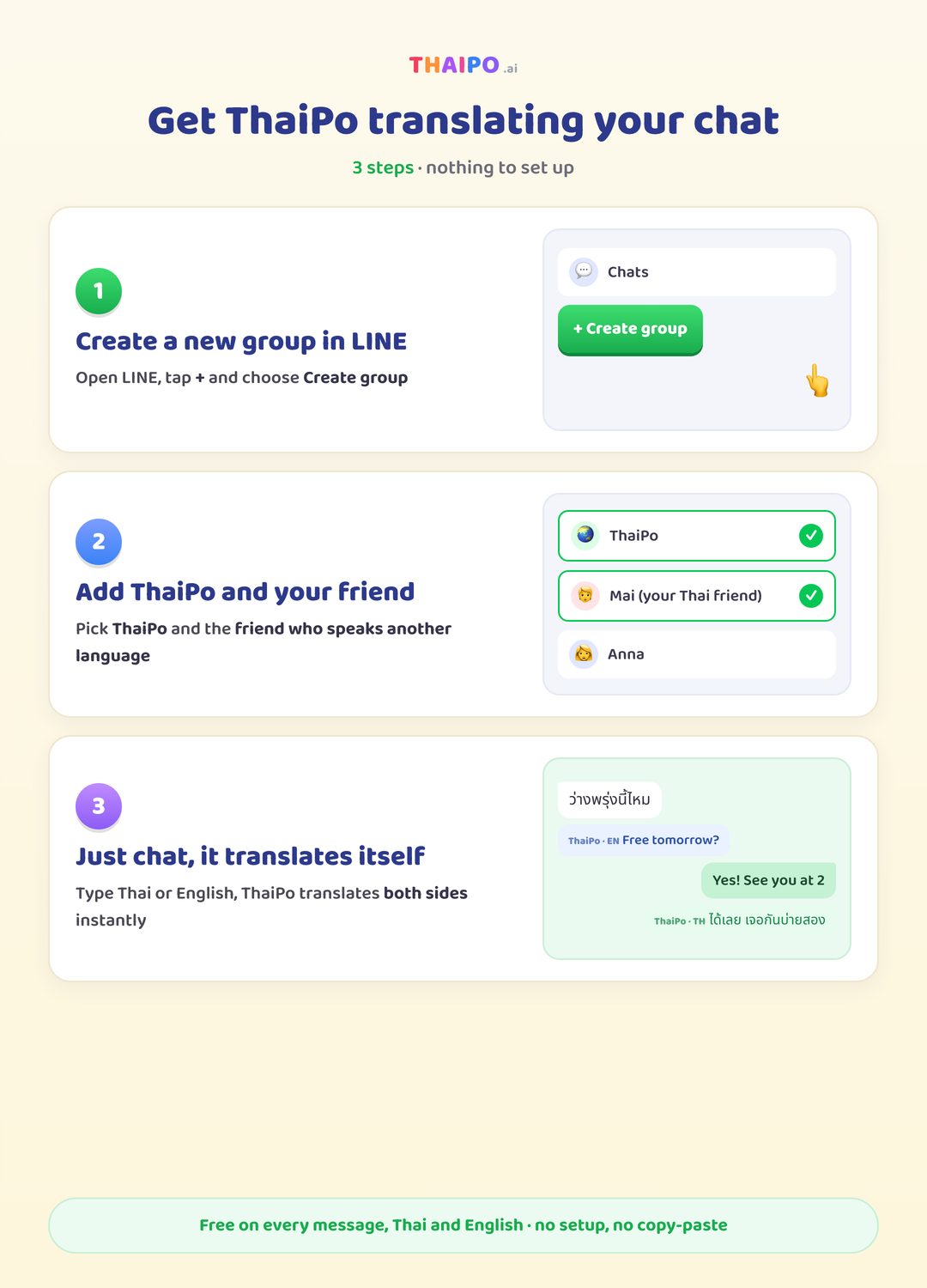
Adding ThaiPo to a group you already have
Already in a group with the right people? Open it, tap the menu, choose Invite, and pick ThaiPo like any other member. It starts translating from the next message.
Translation
Every message in a chat with ThaiPo is translated automatically and posted right below the original:
- Thai (including Isan) → natural English.
- English → natural Thai, with the tone and politeness particles (ค่ะ, ครับ) that fit the conversation.
- Other languages → English.
English is the default. Each chat can swap its non-Thai side for any of nearly 40 languages with /language, from Korean, Japanese, and Chinese to Vietnamese, Arabic, Ukrainian, or Lao: see Language pair.
ThaiPo translates the vibe, not just the words: slang, idioms, mild profanity, emoji context, and registers like งอน (the playful sulk) come through as a person would say them, not as a dictionary would. Names, nicknames, and emoji are kept exactly as sent.
It also reads the recent conversation, so pronouns, names, and tone stay consistent across messages. And it only ever translates: ask a question in a chat and the question is translated for the other person, not answered.
/pause or flip Translation off on the Chats board. Paid plans raise the quality from clear and natural to native-level.Language pair
Every chat translates between Thai and one other language, English unless you change it. Send /language korean (or japanese, vietnamese, arabic, ukrainian, burmese... nearly 40 languages; /language on its own lists them all), or pick the language from the dropdown on the dashboard Chats board, and from then on Thai messages come out in that language and that language comes out in Thai. English typed into such a chat still translates to Thai.
Everything else follows the pair automatically: the back-check bubble renders in the chat's language, voice notes transcribe against it, and the words ThaiPo learns from the chat are learned in that language. Switching the pair clears the chat's auto-learned vocabulary (taught words stay) and ThaiPo relearns in the new language as you talk.
Thai is always one side of the pair, and the language setting is free on every plan./language on its own shows the current pair and the full list.
Memory
Memory is what makes ThaiPo different. Day 1 it translates; day 30 it understands, because it has learned the chat's names, in-jokes, and jargon. Memory is per chat: what it learns in your staff chat stays in your staff chat.
ThaiPo builds memory from four sources:
- What it learns on its ownfrom the chat's history (names, recurring terms, how this chat talks).
- What you tell it, in your own words, in your 1:1 chat (see Talk to it).
- What you teach it with
/teach(see Teach it). - An industry pack, if the chat has one (see Industry packs).
What your plan changes is how much of this ThaiPo holds onto. Free remembers: a glossary of the chat's names and terms plus your recent messages. Pro knows: it adds a relationship and tone profile, a rolling summary of the chat, per-speaker detail and the situations currently open in the chat. The depth scales with that, too: ThaiPo follows about the last 12 messages on Free and 24 on Pro, and carries about 25 of the chat's taught and learned words into every translation on Free, 400 on Pro. When a chat learns more words than its plan carries, translations keep working and nothing is deleted; the oldest words simply rest until you upgrade, at which point they come back.
A more capable translation model comes with each plan (Haiku on Free, Opus on Pro), and that is what reads tone and nuance more sharply. The memory above is the richer context that model has to work with, and the part you can see and edit.
What ThaiPo knows
The dashboard Chats tab shows a per-chat memory view, so you can read what ThaiPo has picked up. On Pro you see a relationship summary and a rolling summary of the chat, plus per-speaker detail and the open situations in the chat, and you can edit what ThaiPo knows: your changes apply on the next memory refresh. It stays per chat, so editing one chat's memory never touches another's.
Attach or detach a chat from your plan with /memory in the chat, or with the Memory switch on the dashboard Chats tab. The dashboard also shows everything each chat has learned and how full your memory is.
Talk to it
In your 1:1 chat with ThaiPo you don't need commands at all: just tell it what you want, in English or Thai, and it remembers.
Tell it a preference and it becomes a lasting rule:
ThaiPo:Got it 💭 I'll remember:
"Never translate email addresses; leave them exactly as written."
This applies in every chat your memory is on.
Correct it when a translation lands wrong, and it learns:
ThaiPo: Thanks, fixed ✍️ From now on in this chat:
งอน = sulky
- Preferences are yours, not the chat's: say one once and it applies in every chat you've attached to your memory (see Memory), groups included. Your plan carries your newest rules: 3 on Free, 25 on Pro.
- Preferences are only picked up in your 1:1 chat with ThaiPo (or with
/preferanywhere), so nobody in a group can change how your messages translate. - Corrections feed ThaiPo's training loop, so every fix you give it makes the next update better.
- See what it knows with
/prefs. The dashboard Accounttab shows everything: edit or remove preference rules, and review or delete every correction you've taught. - Actually wanted that sentence translated? Send
/translate <message>and ThaiPo translates it literally, no questions asked.
/link first), since preferences belong to you, not to one chat. Works with voice notes too: say your preference out loud and it sticks.Teach it
ThaiPo is the first translator you can correct. When something lands wrong, teach it in one message, in the chat where it happened:
ป้าแดง = her aunt (we call her Aunt Daeng)
This applies immediately. See everything I know on your dashboard.
- Left side: the word or phrase as it appears (up to 120 characters). Right side: how this chat wants it translated (up to 300 characters).
/correctdoes exactly the same thing, for when that is the word that comes to mind.- Taught terms apply immediately, work in 1:1 and group chats, and win over anything else ThaiPo thinks it knows, including industry pack terms.
- Learned something wrong?
/forget หมูอ้วนdrops that word from this chat's memory and stops ThaiPo learning it again, which is different from/teach: teaching replaces the meaning, forgetting removes the word. Alias:/unteach. - You can also teach and remove terms from the dashboard: each chat row on the Chats tab has a Teach panel listing everything taught so far.
Learning mode
Learning Thai on the side? Send /phonetics (or /learn) in any chat and every Thai message gains a romanized pronunciation line, Paiboon style with tone marks, under the Thai text:
(sà-wàt-dii khâ)
It is a per-chat toggle: send /phonetics again to turn it off, or use the Learning switch on the dashboard Chats tab. Free on every plan.
Back-check
Using ThaiPo to write Thai you'll copy somewhere else? When you type English in your 1:1 chat and ThaiPo replies in Thai, it sends a second bubble translating that Thai back into English, so you can confirm it says what you meant before you copy it:
🔁 In English, that Thai says:
I'm hungry
The Thai stays in its own bubble, clean to copy. This is on by default in every 1:1 chat and free on every plan; send /check to turn it off (or back on). It runs only in your direct chat with ThaiPo, never in a group.
Industry packs
Packs are curated term sets for work chats, so โต๊ะ 4 orders Chang and Singha instead of elephants and lions. Nine packs ship today:
| Pack | Name in /pack |
|---|---|
| 🍳 Food & Beverage | fnb |
| 🍸 Nightlife & Bar | nightlife |
| 🏨 Hospitality | hospitality |
| 🩺 Healthcare | healthcare |
| ⚖️ Legal | legal |
| 💻 Engineering | engineering |
| 💰 Finance | finance |
| 📦 Logistics | logistics |
| 🎓 Education | education |
/packon its own lists the packs and shows which one the chat is using./pack fnbturns a pack on for the chat;/pack offremoves it. The dashboard Chats tab has the same selector per chat.- Each chat uses one pack at a time.
- Packs work on every plan, including Free. Pick one and its terms guide every translation in that chat straight away.
- Pack terms do not eat into your taught-term budget, and anything you
/teachbeats the pack's version of the same term.
Voice notes
Send a voice note in any chat with ThaiPo and it posts two bubbles: the transcript (marked 🎙) and then the translation, through the same memory pipeline as typed text, so taught terms and packs apply to speech too.
- Voice notes up to 5 minutes long are transcribed.
- The audio file is deleted within 24 hours; only the transcript and its translation remain in the chat history.
- Voice translation is free on every plan, like text.
/call to start a live translated video call with captions on screen.Image translation
In a chat where you have turned it on, send a photo with text in it and ThaiPo posts two bubbles: the text it read from the image, then the translation. Thai text in the image comes back in English, English comes back in Thai. It runs through the same memory pipeline as typed text, so taught terms and packs apply.
- Off by default in each chat. Turn it on with
/ocrin the chat, or the Image switch on the Chats tab. Some chats would rather not have photos read, so it stays off until you ask. - Photos with no readable text are ignored. Mixed-language images are translated as a single block.
- The image is deleted within 24 hours; only the text it read and the translation stay in the chat history.
- It reads on your plan's translation quality: clear and natural on Free, native-level on Pro. Free includes 10 photo translations a month; Pro reads unlimited photos.
Video translation
In a chat where you have turned it on, send a video clip and ThaiPo watches the whole thing, then posts two bubbles: an account of what is said and shown, then the translation. Thai content comes back in English, English in Thai, with your chat's memory and taught terms applied.
- Off by default in each chat, like image translation. Turn it on with
/videoin the chat, or the Video switch on the Chats tab. - Clips up to 5 minutes are watched.
- The video file is deleted within 24 hours; only the meaning text and its translation stay in the chat history.
- Free includes 1 video translation a month; Pro is unlimited.
Live calls
Type /callin any chat with ThaiPo and it posts a join button. Everyone taps in from their phone's browser, nothing to install, and talks face to face while live captions appear on the call in each person's own language: you read their Thai in English, they read your English in Thai. Words start appearing in under a second and settle as the sentence finishes.
- Up to four people can join. In a group,
/call @Namereserves seats for the people you mention, and the caller can remove someone or lock the call. - The 🎭 button swaps your camera for a talking avatar (a Pomeranian, tiger, bunny, Thai cat, buffalo, kangaroo or monkey whose mouth moves as you speak), so you can call with the camera off entirely.
- Tap a person's name on their video tile to change what your phone calls them. Only you see the nickname.
- Every plan includes 10 call minutes a month; Pro includes 300.
- Nothing is recorded: voice and video travel phone-to-phone, captions are generated live, and ThaiPo stores none of it.
Meaning: “what did she really mean?”
Translation tells you the words. Meaning tells you the person. Turn it on for a chat, and a one-tap “What do they mean?” chip appears under each translation. Tap it and ThaiPo reads the message back to you: its tone, what the sender is really getting at, how polite or casual it is, and any cultural or Isan-dialect nuance the literal translation misses, written in your language. The read always comes to you privately, never into the shared chat.
- Off by default per chat. Turn it on with
/meaning(alias/intent) in the chat, or the Meaning switch on the Chats tab of your dashboard. - To ask, tap the “What do they mean?” chip under the translation. Nothing else changes: your chat stays normal, the read only appears when you ask, and in a group it comes to you as a private message, never to everyone.
- No rush: you can ask about any message from the last 7 days, not just the one that just arrived. For an older message, reply to it with ? (hold the message, choose Reply, send a question mark) when you get a moment.
- It uses that chat’s memory: taught terms, your preferences, and the recent conversation, so the read is about this relationship, not a generic phrase.
- It tells you how a message readsto a native speaker, gently and with hedges. It never claims to know what the other person feels, and it doesn’t give advice.
- Meaning is a Pro feature, with unlimited reads.
Native Reply
Everything else ThaiPo does reads Thai for you. Native Reply helps you write it. Turn it on for a chat and, instead of translating your English word for word, ThaiPo rewrites it as natural, native-sounding Thai, with the politeness particles and tone that make it read like a local wrote it. You just type in English as normal; what goes out is fluent Thai.
- Off by default per chat. Turn it on with
/nativein the chat, or the Native Reply switch on the Chats tab. - It only changes the English-to-Thai direction. Thai messages still translate to English as normal, so the other side reads you the same way.
- It uses that chat’s memory: known names, taught terms and the recent conversation, so it sounds like you in this relationship.
- Native Reply is only on the Pro plan, and runs on the native-level translation model.
Voice Reply
Voice Reply turns the chat into a two-way walkie-talkie. Turn it on and, after every translation, ThaiPo sends a short audio clip of it spoken aloud, both ways: speak or type English and play the Thai out loud to the person in front of you; they speak or type Thai and you get it back as spoken English. Either of you can talk or type and hold up the phone for the other.
- Off by default per chat. Turn it on with
/voice(aliases/say,/speak), or the Voice Reply switch on the Chats tab. A default for new chats lives on the Account tab. - The voice matches the gender you set for your Native voice, so a man sounds like a man and a woman like a woman. When no gender is set, it uses a default female voice.
- It works in 1:1 chats and groups, on a typed message or a voice note. The clip is generated fresh each time and deleted within a day; only the text translation is kept.
- Voice Reply is only on the Pro plan.
Chat commands
Everything ThaiPo can do is also a one-line command in the chat itself. Commands are case-insensitive, never count toward your usage, and anything that is not a recognized command is simply translated like any other message.
| Command | Where | What it does |
|---|---|---|
/prefer <rule> | Any chat | Saves a translation preference that follows you into every chat your memory is on. In your 1:1 chat you can skip the command and just say it. |
/prefs | Any chat | Lists your saved preferences. Alias: /rules. Remove them on the dashboard Account tab. |
/translate <text> | Any chat | Translates the text literally, even if it reads like an instruction to ThaiPo. |
/teach คำ = meaning | Any chat | Teaches this chat how to translate a word or phrase. Applies immediately. Alias: /correct. |
/forget คำ | Any chat | Drops a word ThaiPo learned wrong here and stops it learning the word again. Alias: /unteach. |
/language <name> | Any chat | Sets the chat's language pair: Thai plus the one you name, from nearly 40 languages (english is the default; bare /language lists them). Alias: /lang. |
/native | Any chat | Turns Native Reply on or off: your English is rewritten as natural Thai instead of translated literally. Pro plan. |
/voice | Any chat | Turns Voice Reply on or off: after each translation, ThaiPo sends a spoken audio clip of it. Pro plan. Aliases: /say, /speak. |
/phonetics | Any chat | Toggles learning mode: Paiboon pronunciation under Thai text. Alias: /learn. |
/check | Any chat | Toggles back-check: after a Thai reply, ThaiPo sends the English meaning back so you can confirm it. On by default; the bubble appears in 1:1 chats. Aliases: /verify, /backcheck. |
/meaning | Any chat | Turns on “what did they mean?” mode (Meaning); reply to any message with ? to ask. Alias: /intent. |
/ocr | Any chat | Turns image translation on or off for this chat (off by default). Send a photo with text and ThaiPo reads it. |
/video | Any chat | Turns video translation on or off for this chat (off by default). Send a clip and ThaiPo watches it. |
/pdf | Any chat | Turns PDF translation on or off for this chat (on by default in 1:1 chats; free, 1 a month, unlimited on Pro). Send a PDF and ThaiPo reads and translates it. |
/pause | Any chat | Stops translating in this chat; ThaiPo stays but goes silent. Alias: /mute. |
/resume | Any chat | Starts translating again after a pause. Alias: /unmute. |
/clear | Any chat | Resets this chat's recent-conversation memory (the rolling context window). Taught words and your settings are kept. Use it if a chat's replies start drifting. Alias: /reset. |
/pack [name | off] | Any chat | Lists, sets, or removes the chat's industry pack. |
/memory | Any chat | Attaches the chat to your plan's memory, or detaches it. Needs a connected account. |
/link | Any chat | Replies with a one-time code to connect this LINE account to your ThaiPo account at thaipo.ai/link/code. In a group the code is sent to your private chat, never posted in the group. |
/usage | Any chat | Shows this chat's month: messages translated, memory saves, terms learned. |
/plan | Any chat | Shows the chat's plan and memory size. |
/help | Any chat | Lists the commands your plan unlocks, then what Pro would add. Tailored to the chat's plan. |
/status | Any chat | Lists every feature with on, off, or a -when it is not on the chat's plan, so you can see at a glance what is toggled. |
/identify | Any chat | Shows your own LINE ID, this chat's plan, and your Native voice setting. Handy for support: if Native Reply isn't using your gender, this tells you whether the voice is set on the account you're messaging from. |
/stoptips | Any chat | Pauses the daily tips during a trial. Translation and everything else keep working. Aliases: /stop, /stoptip. |
The dashboard
thaipo.ai/dashboard is mission control for your bot. Four tabs:
- Dashboard.Your memory meter (how full your fullest chat is), chats connected, messages translated in the last 30 days, memories collected, and the moments where this chat's memory was applied to a translation, the learned names and words it carried in.
- Chats. Every chat ThaiPo has seen you in, with search and filtering, each with its own switches: Memory on or off, Translating or Paused, Learning mode, Meaning, Image and Video translation, the industry pack selector, and a Teach panel to add or remove taught terms. Each chat also has a What ThaiPo knows panel showing its memory: on Pro, a relationship and rolling summary, plus per-speaker detail and open situations you can edit. Everything the chat commands do, clickable.
- Account. Your display name, the Connect LINE QR code, which sign-in methods (email, LINE, Google) are attached to your account, your translation preferences and native voice, the corrections you have taught, and deleting your account and data.
- Billing. Your plan, how full its memory is, upgrades, and (once subscribed) managing cards, invoices, and cancellation.
Plans & limits
Text and voice translation are free and unlimited on every plan, forever. Pro lets you read what she really means (her tone, intent and subtext), reply in native Thai or aloud, and adds higher quality, reading photos and video, live translated calls (300 minutes a month; every plan includes 10 to try), and deeper memory. New chats start with 3 days of ThaiPo's best translation and premium features (reading what she really means and Native Reply), then settle to their plan. See Billing to change plan.
Conversation memory is how many recent messages ride along with each translation, so the bot follows the thread; paid plans follow it further back. Learned words usedis how many of a chat's taught and learned words guide each translation, newest first; learning more than that never deletes anything, the oldest just rest until you upgrade.
Fair use
To keep free unlimited translation honest, each chat has a speed limit: 20 messages per minute on Free, 60 on Pro. A chat over the limit gets one polite heads-up and messages beyond the limit in that minute are skipped; normal speed resumes the next minute. Real conversations never hit this.
Billing
Upgrades are handled by Stripe in Thai baht from the Billing tab. Once subscribed, the same tab opens the Stripe portal where you can switch plans (with proration), update your card, or download invoices. We never see your card number.
You can cancel any time from the Billing tab. Billing is monthly, running from the day you subscribed, so cancelling simply stops the next renewal: your plan stays active until the end of the month you have already paid for, then the chat returns to the Free plan. Your memory and taught terms are kept, just capped at the Free limits.
Privacy & your data
- ThaiPo only sees chats it is added to. Every other LINE chat is invisible to us.
- Chat history is kept, encrypted, to power your memory. That is the product: deleting the history would lobotomise your bot. It stays encrypted in transit and at rest.
- Your data is never used for anyone else.One customer's chats are never used to translate or improve results for another, and the AI providers we use are not allowed to train on your content.
- Voice audio is deleted within 24 hours. Only the transcript and translation remain, as part of the chat history.
- Deleting is easy and same-day. Delete your whole account from the dashboard Account tab, or contact usto delete a single chat's history. To stop collection in one chat,
/pauseit or remove the bot.
The full detail lives in the privacy policy.
Troubleshooting
ThaiPo left my group right after I added it
ThaiPo stopped translating in a chat
/resumein the chat, or check the chat's row on the dashboard Chats tab. If the chat says "moving faster than I can translate", that is the per-minute fair-use limit; it resumes by itself within a minute.My link code or QR didn't work
/link again) and retry.My voice note got no reply
ThaiPo sent a message about signing up. Will it do that again?
How do I remove ThaiPo completely?
/pause it to keep it around silently). To erase your account and data, use the dashboard Account tab; deletion is honoured same-day.Anything else? Contact us and a human will answer.